
Wireless Access Points (WAPs) vs. Routers: What’s the Difference?#
Introduction#
When setting up a home network or walking into an office, you’ve probably noticed small boxes blinking with lights, providing the Wi-Fi connection you rely on. People often call all of these boxes “routers,” but in the enterprise networking world, that’s rarely accurate.
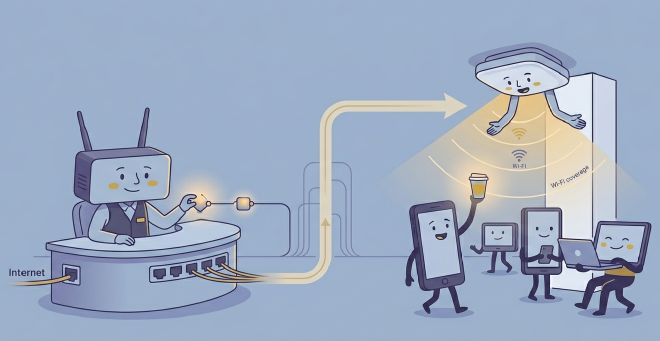
While they might look similar on the outside, a Wireless Access Point (WAP) and a Router serve entirely different purposes in network architecture:
A router directs traffic, acting as the gateway between your local network and the internet.
An access point provides the physical wireless signal for devices to connect to that network.
Why does your home device seem to do both? Because consumer “routers” are actually multi-purpose combo devices. In this guide, we’ll break down what each device actually does, their key differences, and when you should use one over the other.
1. What is a Router?#
- Definition: → A networking device that forwards data packets between computer networks, essentially acting as a traffic director.
- How It Works:
- It reads the destination IP addresses of data packets coming from your devices.
- It determines the most efficient path to send that data out to the vast internet.
- Key Functions: → Routes traffic between the LAN (Local Area Network) and WAN (Wide Area Network). → Runs a firewall to block malicious inbound traffic. → Usually hosts the DHCP Server (assigning IP addresses to your devices).
- Purpose: – Connect multiple networks together. – Protect edge security and manage IP addressing.
2. What is a Wireless Access Point (WAP)?#
- Definition: → A networking hardware device that allows other Wi-Fi devices to connect to a wired network.
- How It Works:
- It connects directly to a router or switch via an Ethernet cable.
- It converts the wired incoming internet connection into a wireless radio frequency (Wi-Fi) so smartphones and laptops can connect.
- Key Functions: → Creates a Wireless Local Area Network (WLAN). → Broadcasts an SSID (Wi-Fi name) for devices to find. → Handles Wi-Fi encryption (WPA2/WPA3).
- Purpose: – Extend the wireless coverage of an existing network. – Support a high density of wireless client devices.
3. Key Differences#
| Aspect | Router | Wireless Access Point (WAP) |
|---|---|---|
| Primary Job | Directs network traffic & assigns IPs | Bridges wireless devices to the LAN |
| Network Layer | Layer 3 (Network Layer) | Layer 2 (Data Link Layer) |
| Can Connect to ISP | Yes (usually via integrated modem) | No (Must connect to a router/switch) |
| DHCP Capabilities | Yes (hands out IP addresses) | No (just passes the request along) |
| Best Used For | Managing the core network & internet | Expanding wireless coverage |
4. The “Home Router” Illusion#
If you have a box in your living room provided by your ISP (like Vodafone or Telstra), you might be wondering, “But my router does have Wi-Fi!”
This is the biggest source of confusion. A typical home “Wi-Fi Router” is actually an All-in-One Device that combines three distinct pieces of enterprise hardware into one plastic shell:
- A Router: To manage the connection to the ISP and assign IP addresses via DHCP.
- A Switch: The LAN ports on the back to plug in wired devices.
- A Wireless Access Point (WAP): The internal antennas broadcasting the Wi-Fi signal.
In enterprise and business environments, these three functions are physically separated to maximize performance, scalability, and security.
5. Real-World Scenarios#
Scenario 1: A Standard Home Setup#
- Hardware: An all-in-one wireless router.
- The Flow: Your phone connects to the built-in WAP via Wi-Fi. The built-in router component assigns your phone an IP address using DHCP and routes your traffic out to the internet via the ISP.
Scenario 2: A Large Two-Story House (Dead Zones)#
- The Issue: The all-in-one router is downstairs, and the upstairs bedroom gets no Wi-Fi.
- The Solution: You don’t buy a second router. Instead, you run an Ethernet cable upstairs and plug it into a standalone WAP. The downstairs router still handles the routing and IPs, while the upstairs WAP simply provides a new umbrella of Wi-Fi coverage.
Scenario 3: A Corporate Office#
- The Architecture: → In the IT closet sits a heavy-duty enterprise Router and several Switches (with no Wi-Fi capabilities). → Mounted on the ceiling every 50 feet throughout the office are standalone WAPs. → As employees walk with their laptops, their connection seamlessly roams from one WAP to the next, while the central root router handles all the heavy lifting of internet traffic and DHCP.
6. Best Practices#
- For Home Network Upgrades: → If your Wi-Fi is weak but your internet is fast, consider turning off your ISP router’s Wi-Fi and plugging in dedicated WAPs (or a Mesh System, which is essentially a centrally managed group of WAPs).
- Avoid “Double NAT”: → Never plug a second consumer router into your first router to boost Wi-Fi unless you set the second router to “Access Point (AP) Mode”. Having two devices running routing and DHCP on the same network causes severe conflicts.
- Hardwire When Possible: → Standalone WAPs should almost always be hardwired via Ethernet (often powered via PoE - Power over Ethernet) back to the switch or router for maximum stability.
Summary#
To put it simply: a Router is the brain that manages network rules, internet traffic, and IP addresses, while an Access Point is an invisible wireless extension cord connecting your devices to that brain.